The Rule
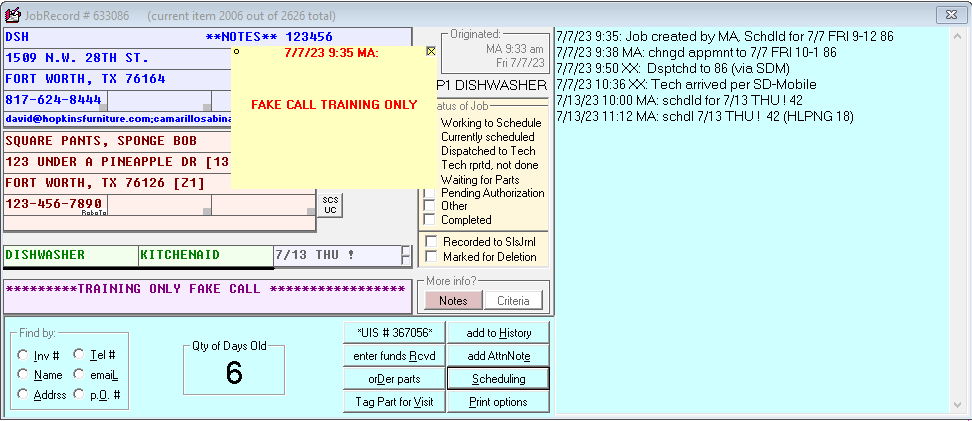
When rescheduling a helper call, it is very important to NOT reschedule from the job record. The reason is that rescheduling from the job record will only reschedule one technician - not both. Instead, the calls need to be rescheduled from the Mapping View.
Step-by-Step Walkthrough
(Original had click-by-click screenshots; re-attach during KB review.)
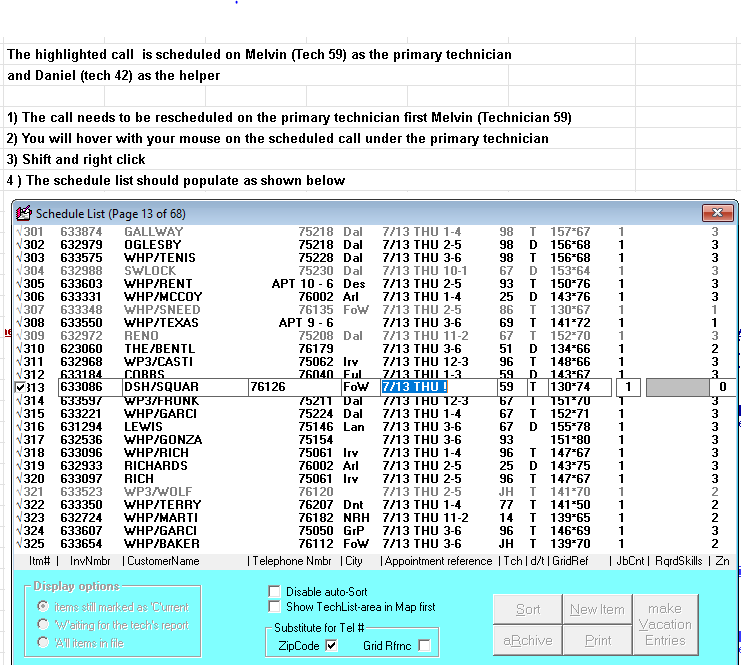
- Open the Mapping View (do not use the job record).
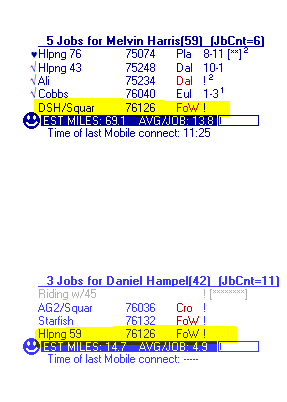
- Locate the technician with the primary call.
- Select the call you want to reschedule.
- (Follow the reschedule screens as prompted.)
- Double-click the highlighted area.
- Choose the date the call is being rescheduled to with the date picker.
- Repeat steps 1-5 with the technician that is scheduled to help. You can change to a different helper during this step if that decision has been made.
Verifying the Reschedule
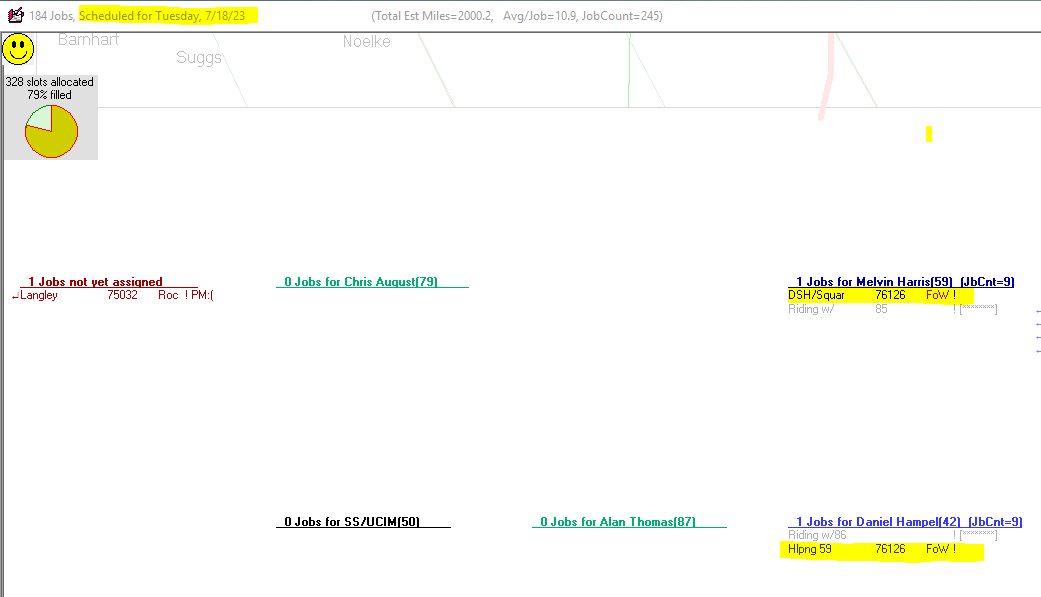
After completing both, both technicians should now be scheduled on the new date. Example from the source: primary Melvin (technician 59) and helper Daniel (technician 42), both moved to 07/18/23 (visible in the top-left date corner of the Mapping View).
Reference images (from CIT cheat sheet):